
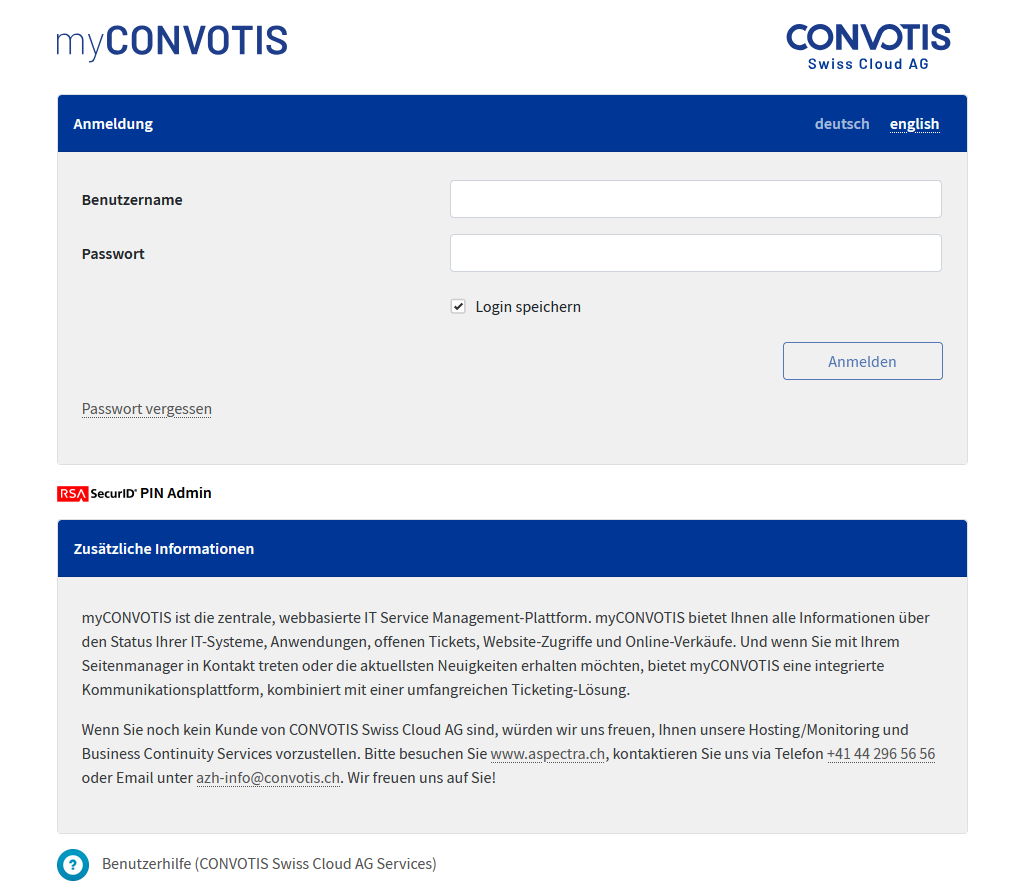
myCONVOTIS URL: https://www.myaspectra.ch
1. Start the login process
Please enter your username (i.d. xyzjodo) and password in the given fields and click on “Login”.
If you choose to save your credentials, you won’t have to insert your credentials for a week in this browser.
2. Choose Airlock 2FA
If this is your first login or you haven’t chosen a 2FA Method yet, you will have to choose a 2FA Method to continue your login. Logins without 2FA aren’t accepted anymore. To use Airlock 2FA choose the corresponding select box and click on “migrate now”.
3. Install Airlock 2FA-App

Download and install the Airlock 2FA-App from:
– Play Store (Android): https://play.google.com/store/apps/details?id=com.airlock.iam.a2fa
– App Store (iOS): https://apps.apple.com/de/app/airlock-2fa/id1502438188
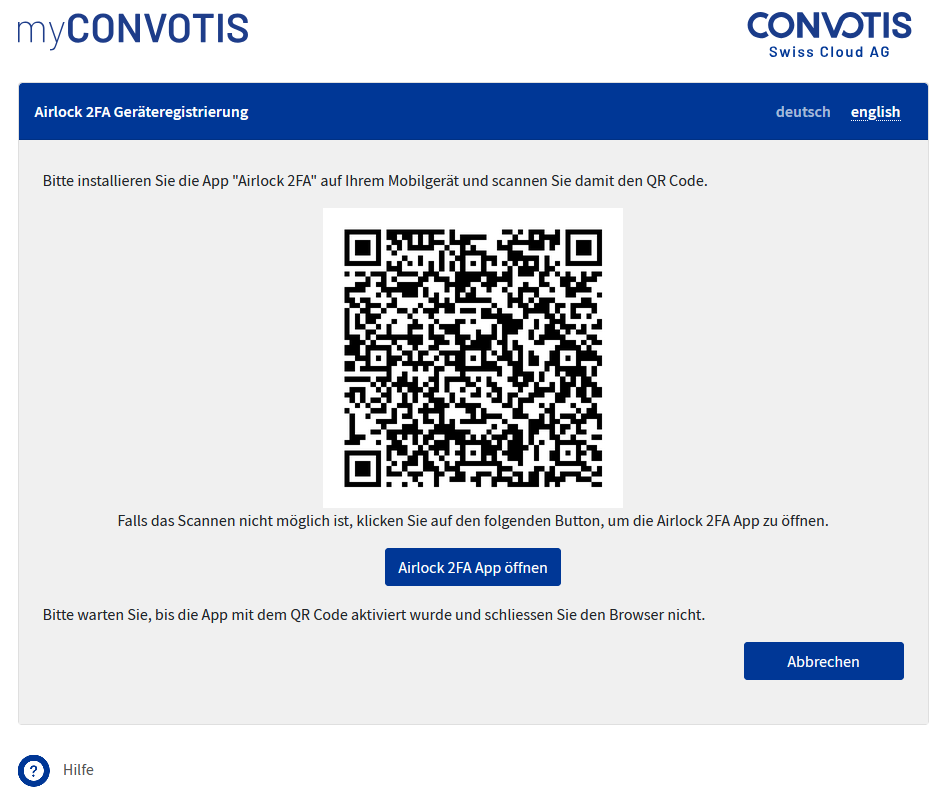
4. Activate Airlock 2FA
If you are on your computer open the Airlock 2FA-App on your mobile phone, select “QR Scanner” and scan the QR Code. If you are on the same mobile device on with you installed the Airlock 2FA-App click on “Open Airlock 2FA App”.
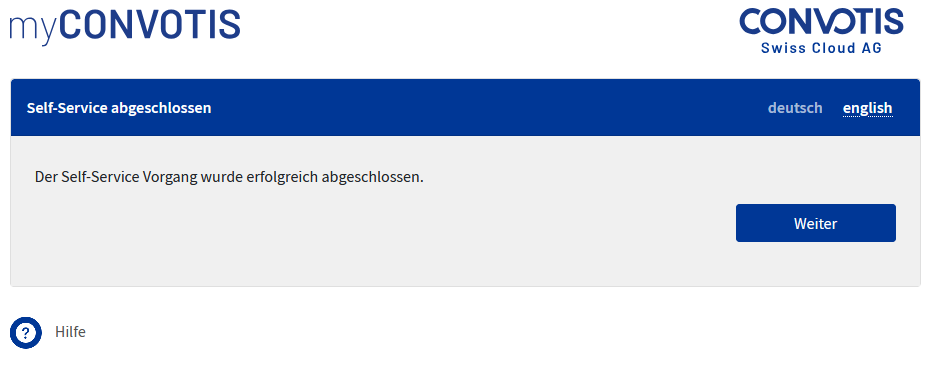
5a. Accept Airlock 2FA push notification
If your mobile phone with the Airlock 2FA-App is online, you will recieve a push notification that you have to accept to continue. If your mobile phone isn’t online, please click on “Offline mode”.
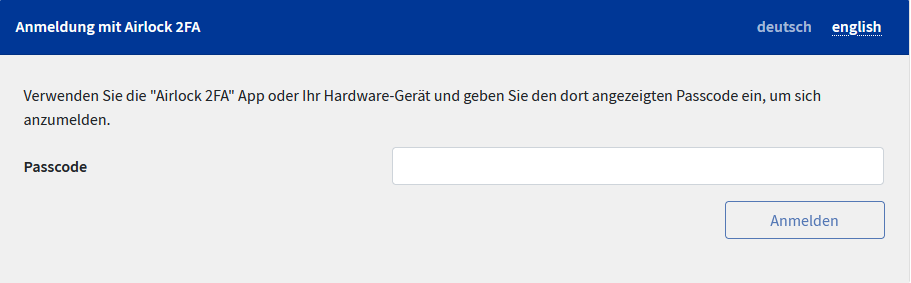
5b. Airlock 2FA offline mode
If you chose the Airlock 2FA Offline mode, you have to insert the Token that your Airlock 2FA-App is presenting you in your App under “myaspectra” and click on “Login”.
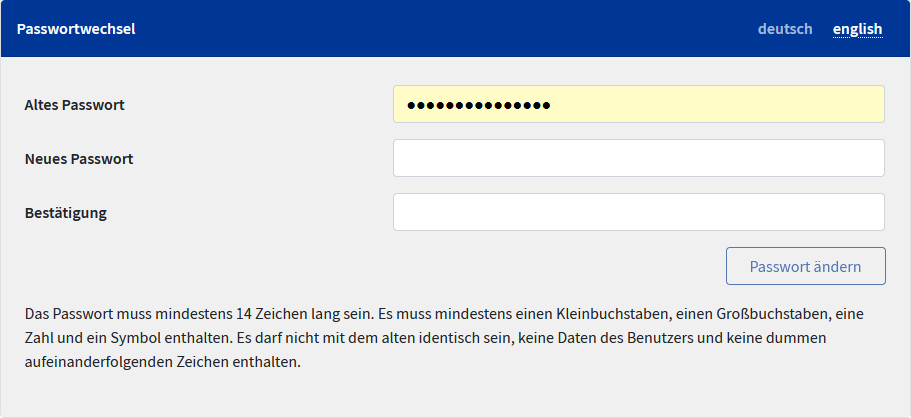
6. Possible password change
For security reasons you have to change your password when you log in for the first time or an administrator set you a new password. Please pay attention to the notes regarding the password specifications.